How to Fix Mobile Hotspot not working in Windows 10
Nowadays, all Windows devices come with Windows 10 operating system. Windows 10 has many features than other Windows previous versions.
If you are outside and you need to access the internet on your Windows 10 laptop, then a mobile hotspot is the best method to access the internet safely on your device. You can easily create a mobile hotspot via your smartphonersquos internet. However, sometimes, when it is not working, you can be disappointed by the inconvenience. So, here are the instructions to fix mobile hotspot not working in Windows 10.
Run Network Adapter Troubleshooter
If you want to run the Network adapter, then pursue the instruction given below.
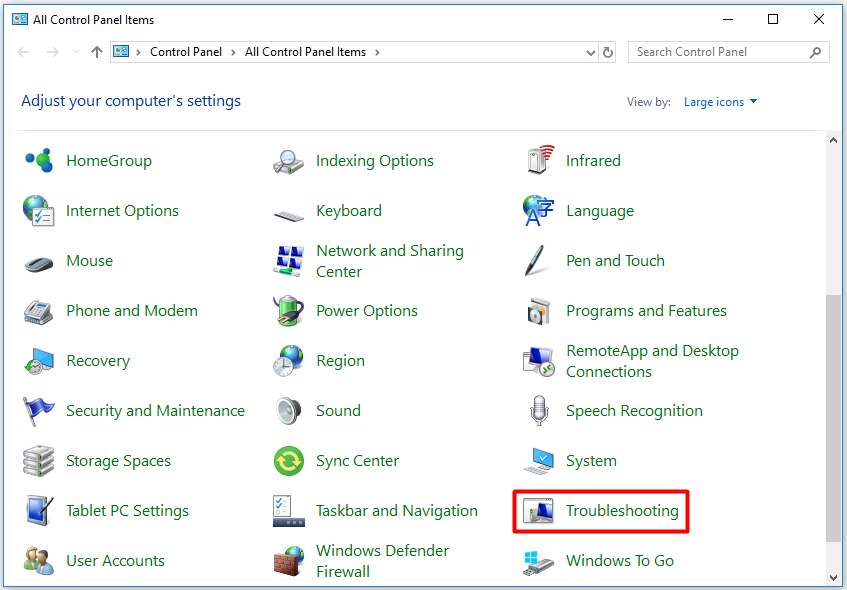
- First of all, you have to select the taskbar and then click on the Search icon.
- You should enter lsquotroubleshootrsquo into the search bar.
- Then go to Troubleshoot Settings within the results.
- After that, you will reach the Troubleshoot field of the Settings application.
- Navigate to the right panel and then move down until you locate Network Adapter.
- Now, choose the Network Adapter and then select Run the Troubleshooter option.
Update the Network Adapter Driver
If you want to update the network adapter driver, then you can follow the provided steps.
- Get started by pressing Win R keys at once on the keyboard to open the Run dialog section.
- After that, enter lsquodevmgmt.mscrsquo into the Run dialog section and click on OK.
- After Device Manager brings up, open the contents of the Network Adapters category.
- Go to the network adapter and rightclick on it, then choose Update Driver.
- Now, navigate to the new screen and choose lsquoSearch automatically for updated driver software.rsquo
Configure the Adapter Settings Again
If you want to configure the adapter settings again, then pursue the instruction given below.
- To get started, launch the Settings application by holding Win I keys at once on the keyboard.
- Then go to the Settings application and choose Network and Internet.
- After that, you should navigate to the left panel and then select Mobile Hotspot.
- You have to go to the right panel and the beneath Related Settings, choose Change Adapter Options.
- Go to mobile hotspot adapter and rightclick on it, choose Properties option from the context menu.
- On the Sharing button, untick the box of lsquoAllow other network users to connect through this computerrsquos Internet connection.rsquo
Check the Registry Settings
If you want to check the Registry settings, then you can follow the provided steps.
- Firstly, you have to open the Run dialog section by holding Win R keys at once on the keyboard.
- Go running dialog section and enter lsquoregeditrsquo into it.
- Then you require to open Registry Editor as an administrator. So, as an alternative selecting OK, you have to hold Control Shift Enter keys on the keyboard.
- When the prompt comes and asks for permission to the application, select Yes.
- After the Registry Editor is bring up, go to this
- HKEYLOCALMACHINESYSTEMCurrentControlSetServicesWlanSvcParametersHostedNetworkSettings.
- Later, navigate to the right panel and then select HostednetworkSettings key and rightclick on it.
- Now, choose the Delete option.
Daniel Ryanis a creative person who has been writing blogs and articles about cyber security. He writes about the latest updates regardingnorton.comsetupand how it can improve the work experience of users. His articles have been published in many popular emagazines, blogs and websites.
Sourcehttpsdaniel11ryan.wordpress.com20191126howtofixmobilehotspotnotworking inwindows10




Komentar
Posting Komentar